Doc Fill fills documents by replacing marked places in a .docx file. You
mark those places once with short tags, add the file to the app, and every document you
make from it afterwards is just a form to fill in.
There are two ways to get a template into the app. AI auto-markup finds the blanks for you, costs credits and needs an account. Manual markup, described here, is free, works in your own word processor, and gives you exact control over every field.
Short version. Open your document in Word, Google Docs or any
editor that saves .docx. Replace each blank with a tag like
[#*text*Field name*#]. Save as .docx, open
Doc Fill, tap the plus button, and choose Manually.
The tag format
Every tag looks the same:
[#*FIELD TYPE*FIELD NAME*#]
- [#* and *#] mark where the tag starts and ends.
- * separates the two parts inside it.
- Both parts are required. A tag missing one of them is not recognised.
Field types
| Type | What you get in the app | Example |
|---|---|---|
text | A plain text field | [#*text*Full name*#] |
number | A numeric keypad | [#*number*Number of days*#] |
date | A date picker | [#*date*Signed on*#] |
photo | A photo, inserted into the document | [#*photo*Passport page*#] |
The field name is yours to choose. It is what you will see above the input in the app, so keep it short and recognisable: Employee full name beats name when the document has four of them.
An example
Here is a short leave request with eight fields, and what the app makes of it.
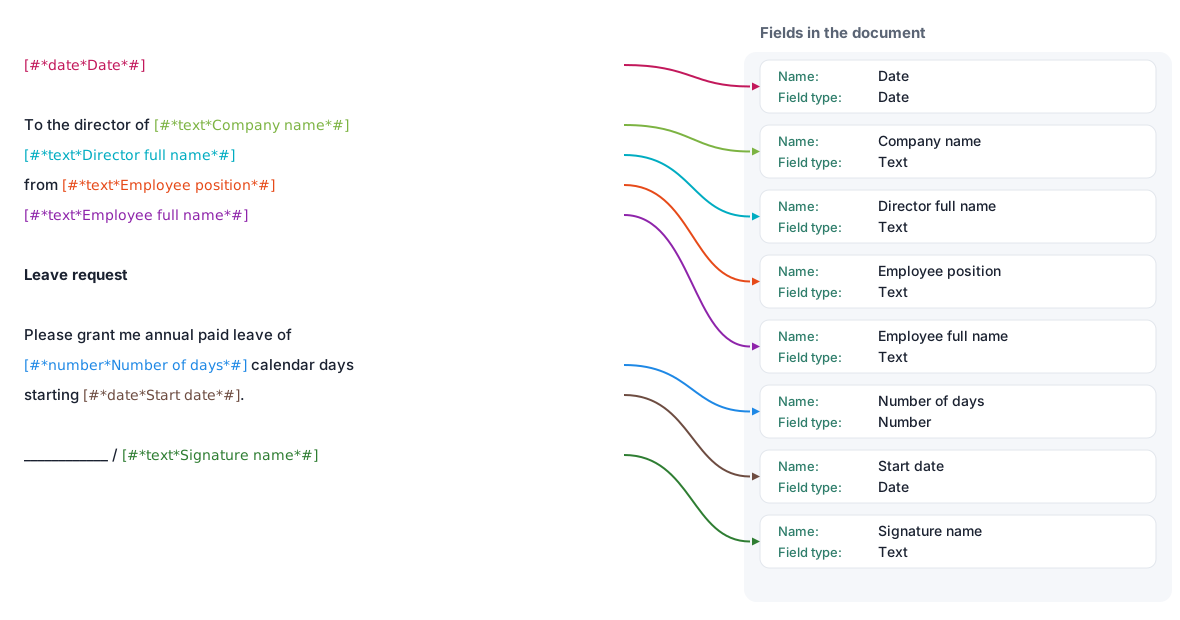
Download this example as a .docx and add it to the app to see the whole path end to end before you mark up a document of your own.
Marking up your document
-
Open the document in a word processor
Word, Google Docs, Pages or LibreOffice all work. The file must end up as
.docx: older.docand.pagesfiles are not accepted. -
Replace each blank with a tag
Delete the underscores, the placeholder text or the empty space, and type the tag in its place. Keep the punctuation around it: the tag is replaced by your answer, so the comma or full stop after it stays where it belongs.
Format the tag the way you want the finished line to look. Your answer inherits the tag's formatting, so a bold tag produces bold text and a centred line stays centred once it is filled in.
-
Save as .docx
In Google Docs: File, Download, Microsoft Word (.docx). Move the file somewhere your phone can reach it, such as Files, iCloud Drive or Google Drive.
Adding the template to the app
-
Start a new document
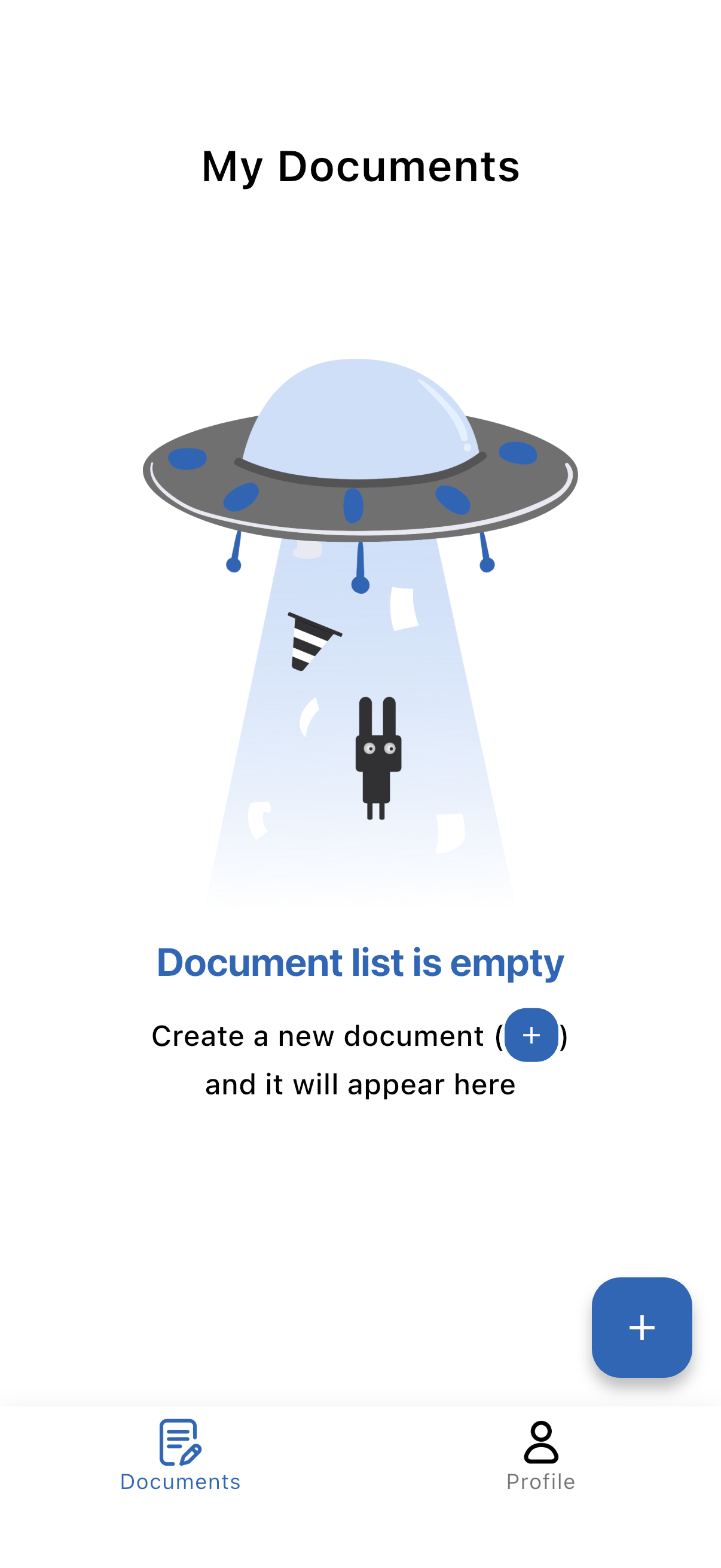
Tap the plus button on the document list. The app opens My templates, where your own documents live.
-
Choose Manually
Two ways in are offered: AI markup for a document with no tags, and Manually for the file you have just tagged yourself. Once you already have templates, the same choice lives behind the Add button.

-
Pick your .docx and check the fields
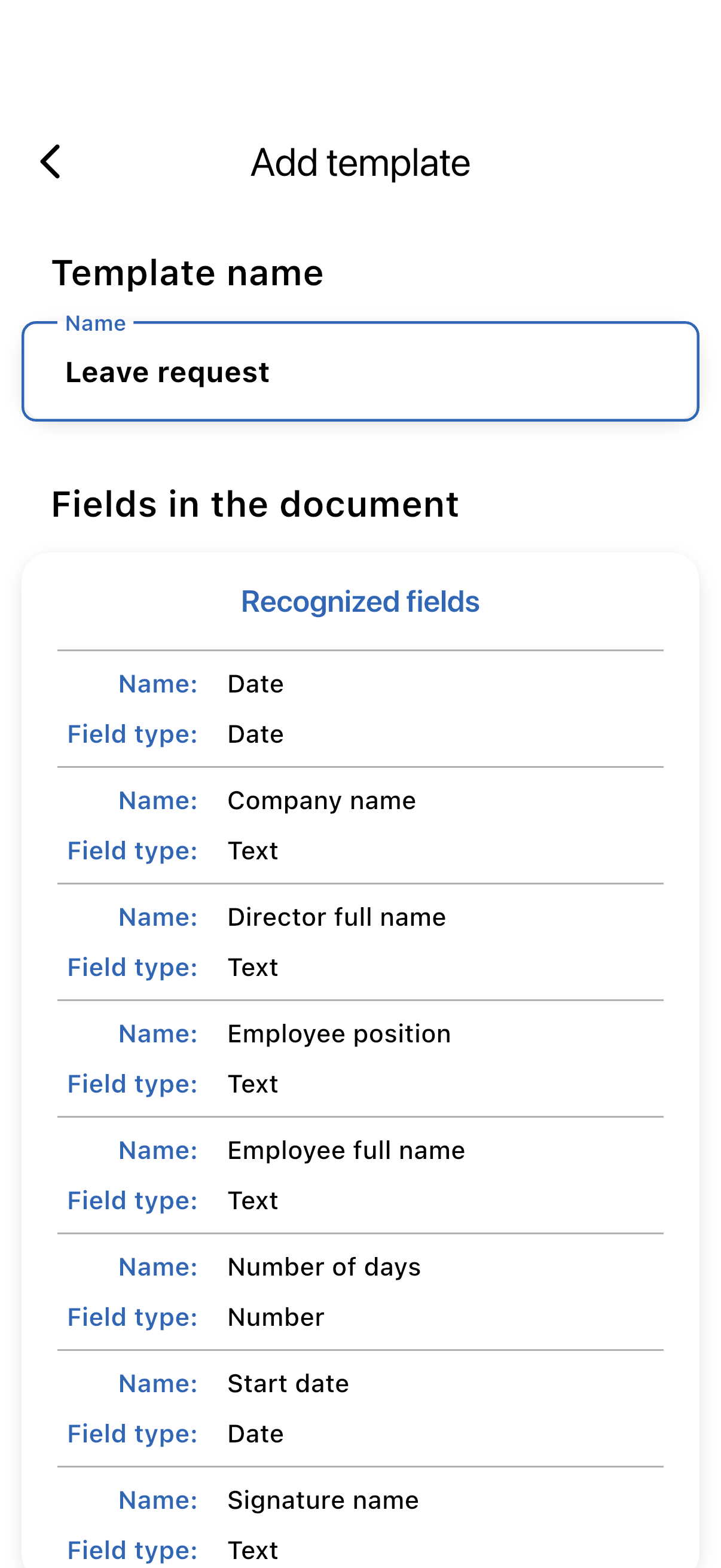
The app lists every field it recognised, with its name and type. If something is missing or a tag is highlighted as an error, go back to the document and check that tag.
-
Save the template
It appears in My templates and is ready to fill in. Every document you create from it is saved in your list, so you can reopen it, change an answer and share it again.

When something does not work
The app recognised no fields at all
Check the tag boundaries: [#* at the start and *#] at the end, with no spaces inside them.
One field is missing
That tag was most likely split in two by formatting, which happens when part of it ends up styled differently from the rest. Delete it entirely and retype it.
A field has the wrong type
The type must be one of the four above, spelled exactly. An unknown type falls back to a plain text field, which is often the first sign of a typo.
Still stuck
Write to docfill@dglfactor.tech and attach the document. We will look at it and help you get it working.