Someone sends you a Word document to fill in, and you only have your phone. There are two ways to do it on an iPhone or iPad: type straight into the document, or turn it into a form and let an app put your answers in place. Which one fits depends on how often you fill in the same document.
Short answer. For a one-off edit, open the .docx in Microsoft Word or Pages and type into it. For a document you fill in again and again, such as an invoice, a contract or a report, add it to Doc Fill once: it becomes a form, and every next copy takes a minute.
Option 1: type into the document in Word or Pages
-
Open the file
Tap the attachment in Mail or the file in Files, then Share and choose Microsoft Word or Pages. Pages opens .docx files and converts them to its own format.
-
Zoom in and type over the blanks
Tap each blank, delete the underscores or placeholder text and type your answer. On a phone screen this means a lot of zooming and scrolling.
-
Export and send
In Pages, use Export, Word to keep the .docx format. In Word, the file is saved as .docx already. Check the layout before you send it: tables and line breaks can shift when you type on a small screen.
This works well for a single document. It gets slow when the same form comes back every week, because you retype the parts that never change and re-check the layout each time.
Option 2: turn the document into a form with Doc Fill
Doc Fill turns any Word document into a fill-in form. You only see the fields, so the layout cannot break, and the finished file keeps the exact look of the original.
-
Add your .docx
Tap the plus button and pick the file from Files, iCloud Drive, mail or a messenger. Doc Fill keeps your document as a reusable template.

-
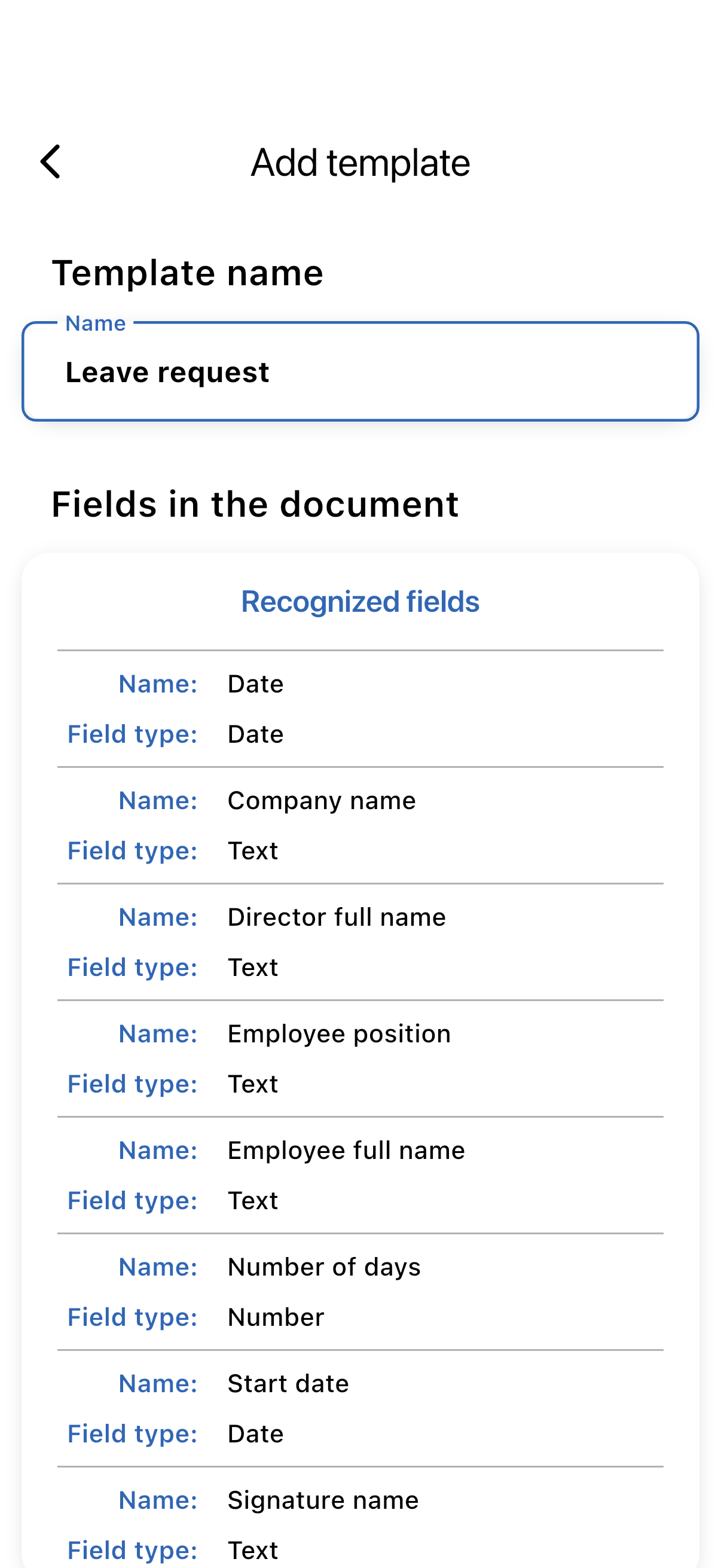
Let AI find the fields
AI markup finds every blank and turns it into a field: text, date, number or photo. You see the exact cost in credits before anything is charged. Prefer to do it yourself? Mark the fields with short tags, free, as the markup guide shows.
-
Fill in the form and send it
Answer the fields on a clean form. Doc Fill puts every answer into the original document and you send a finished Word file, or a PDF with Premium, to mail, a messenger or Files.

The next time you need the same document, open the template, change only what is different and send it again. Every document you made stays in one list, with your previous answers in place.
Which way to choose
| Situation | Best fit |
|---|---|
| One document, once | Word or Pages |
| The same form every week or month | Doc Fill |
| Photos must go into the document | Doc Fill |
| You need a PDF to send | Doc Fill Premium, or export from Word or Pages |
| You need to sign the document electronically | A signing app, after filling it in |
Ready-made templates
Want to try it on a real document? These free .docx templates open in any word processor and import into Doc Fill as a ready form:
- Invoice template: business and client details, five line items, tax and total
- Inspection report with photos: a checklist of eight areas, three photos with captions, findings
- Lease agreement template: landlord, tenant, rent, deposit, utilities, pets and signatures
- Service agreement template: client, services, fee, payment schedule, term and signatures
Questions
Can I fill in a Word document on iPhone without a computer?
Yes. You can type into it in Microsoft Word or Pages, or add it to Doc Fill and fill it in as a form. AI markup in Doc Fill needs no computer at all.
Does Doc Fill work with .doc files?
It works with .docx. Open an older .doc file in Word, Pages or Google Docs and save it as .docx first.
Can I get a PDF?
Yes, Doc Fill Premium exports the finished document to PDF. On the free plan you get a .docx that any editor can open.
Can I sign the document in Doc Fill?
No. Doc Fill fills in documents, it does not collect e-signatures. Fill in the document, export it and sign it in the tool you already use.
Get Doc Fill. Free for one template and up to 5 documents on it. Premium adds unlimited templates, PDF export and AI credits.
Download on the App Store · Get it on Google Play · How Doc Fill works